
The quick answer: mixing brings separate tracks together into a clear stereo mix. Organize and edit the session first, then set levels and panning without effects. Only then address specific problems with EQ, compression, space and automation. Compare at matched loudness, in mono and on several familiar devices.
Mixing and mastering do different jobs
| Stage | Works with | Main question |
|---|---|---|
| Mixing | Individual tracks and groups | How do the song’s elements sound relative to each other? |
| Mastering | A finished stereo mix or agreed stems | How coherent and technically reliable is the finished program? |
A quiet vocal, bass masking the kick or reverb obscuring words are mixing issues. Mastering can make modest overall tone and dynamics adjustments, but doesn’t replace access to the source tracks. Our mastering guide covers the next stage.
Step 1. Prepare the session
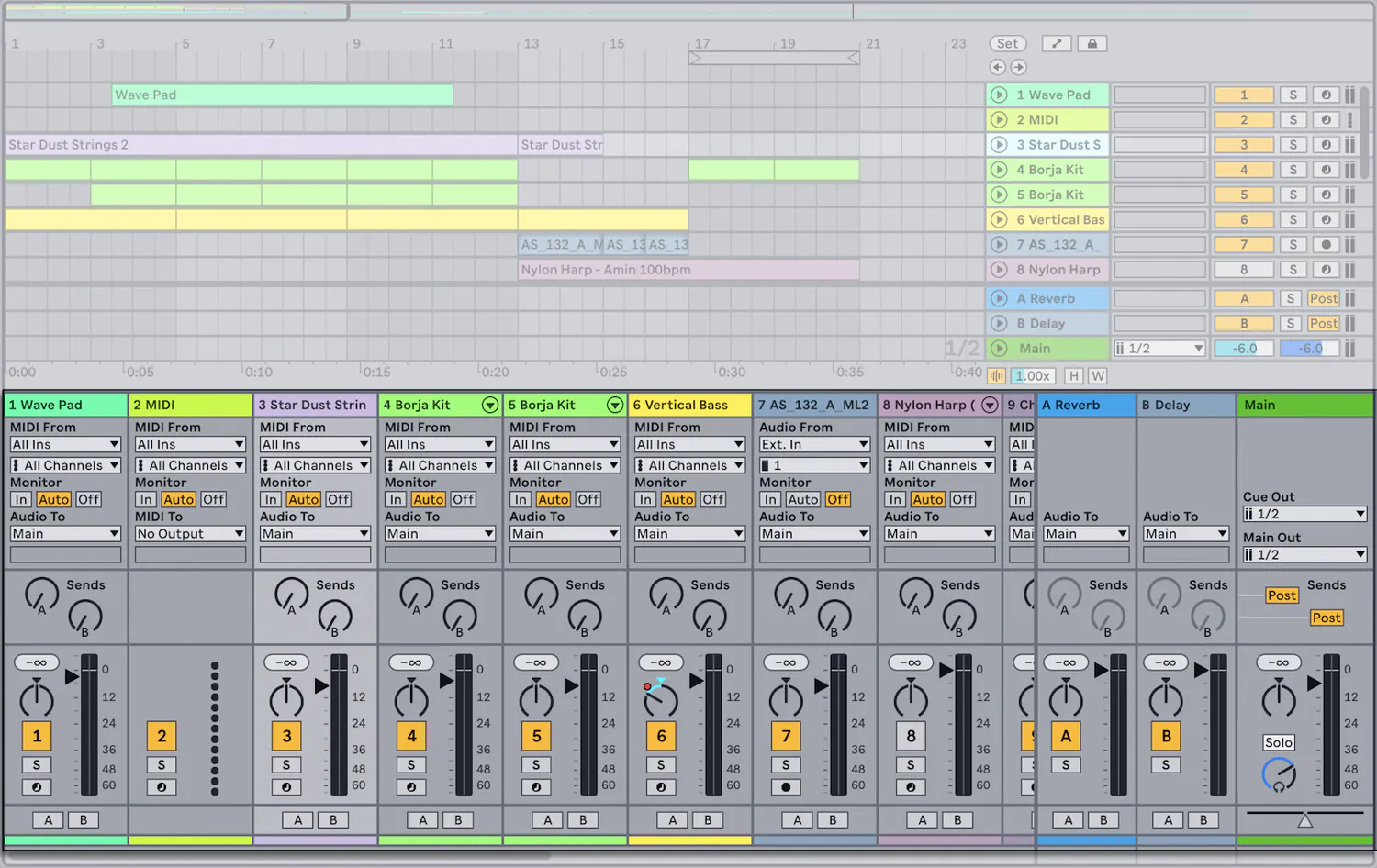
Before processing, name tracks, remove unused takes, check edits and fades, and group related parts. Make sure files start in the right places and accidental routing isn’t sending the same signal through two identical channels.
- Name tracks by role, not file number
- Find clicks, cutoffs and wrong takes before processing
- Use stereo and mono files intentionally
- Keep group and send routing clear
- Store originals separately from edited versions
- Have a rough mix and one or two relevant references
If your sources aren’t ready, revisit our home recording guide. Cleaner editing means processing reacts less to stray noise and edit points.
Step 2. Build a static balance
Turn off optional effects and set levels. Decide what leads each section: the main vocal, solo instrument, riff or rhythm. Use panning to place elements horizontally rather than making every sound as wide as possible.
Listen through the whole song, not one loop. A balance that suits a quiet verse may fall apart in the chorus. Don’t automate every phrase yet; find a stable foundation first.
Step 3. Use EQ for a specific reason
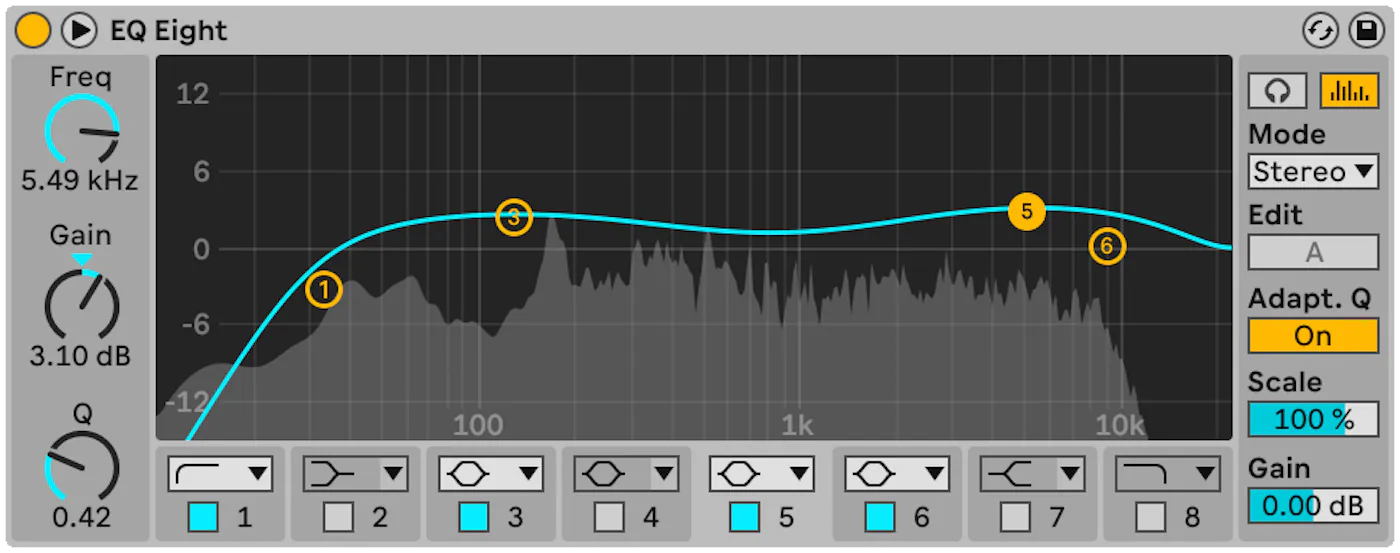
EQ changes spectral balance but doesn’t understand musical hierarchy. Name the problem before adjusting it: unwanted microphone rumble, a harsh resonance, or two sounds masking the same important area. Compare processed and original versions at similar loudness; louder nearly always seems more convincing.
- Try changing level, register or the arrangement first.
- Don’t cut frequencies from someone else’s chart without an audible reason.
- Check parts in the mix, not only soloed.
- If a drastic correction is needed, check whether the issue began during recording.
Step 4. Control dynamics, not compressor numbers
A compressor can stabilize vocals, emphasize or soften drum attacks, and bring an instrument group together. Decide what needs more consistency first. Settings depend on the performance and material: there is no universal vocal attack, release or ratio.
Large changes within a phrase may be easier to fix with clip gain or automation before compression. The compressor then receives a more predictable signal and doesn’t have to solve technical and artistic tasks simultaneously.
Gain staging isn’t a magic position for every fader. It keeps levels manageable throughout the signal chain so unwanted clipping doesn’t slip in unnoticed.
Step 5. Add space and depth
Reverb and delay suggest distance and place elements in a shared space. Use sends when several parts need the same character, and filter effect returns when they mask lyrics or low end. Judge effects across the arrangement: a long tail that sounds beautiful in a gap can blur neighboring phrases.
Depth isn’t only reverb. A quieter, darker sound with less attack often feels farther away; a bright, direct sound feels closer. Combine level, tone, dynamics and space.
Step 6. Automate by section
A static setting rarely works equally well in verses and choruses. Automate lead vocal level, effect returns, transitions and elements that briefly need attention. Automation needn’t be obvious; it should keep listeners engaged and support the song’s development.
Check the finished mix
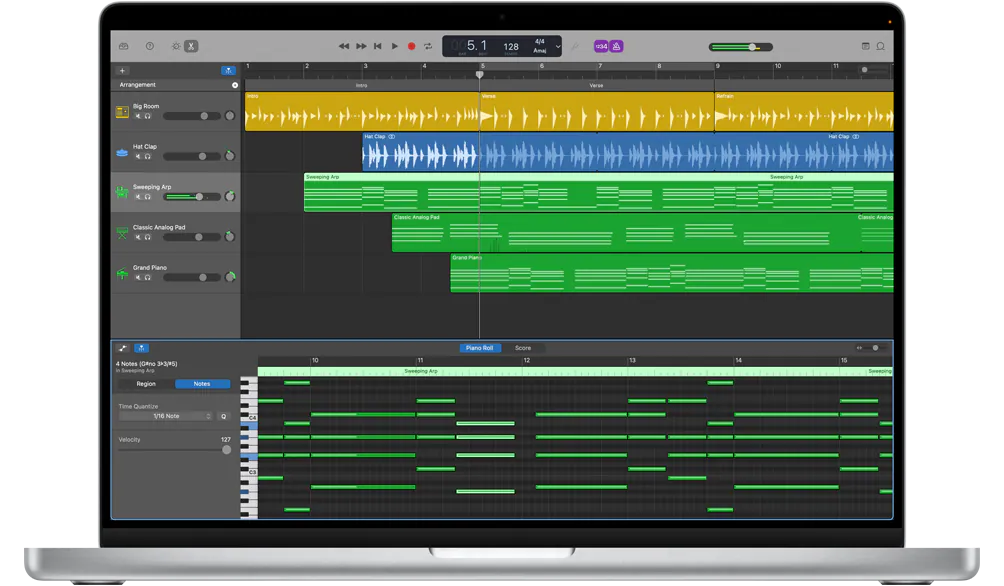
Take a break and return in another session. Listen quietly, then in mono, on wired headphones, a familiar speaker and your phone. These devices don’t need to sound identical; the important words and musical hierarchy should survive.
Compare a reference at similar perceived loudness. A louder, already-mastered reference can tempt you to add unnecessary treble, bass and compression just to catch up.
Export for mastering
Export a lossless stereo WAV or AIFF at the project’s current sample rate and bit depth, without unwanted clipping. Don’t reduce sample rate or bit depth before mastering. Avoid using a limiter solely to make comparisons louder unless it is an intentional part of the sound. When sending to an engineer, include tempo, a reference, notes and a version with your master-bus processing if it matters to the concept.
Continue with our mastering checklist, then use the release preparation guide once the master is ready.