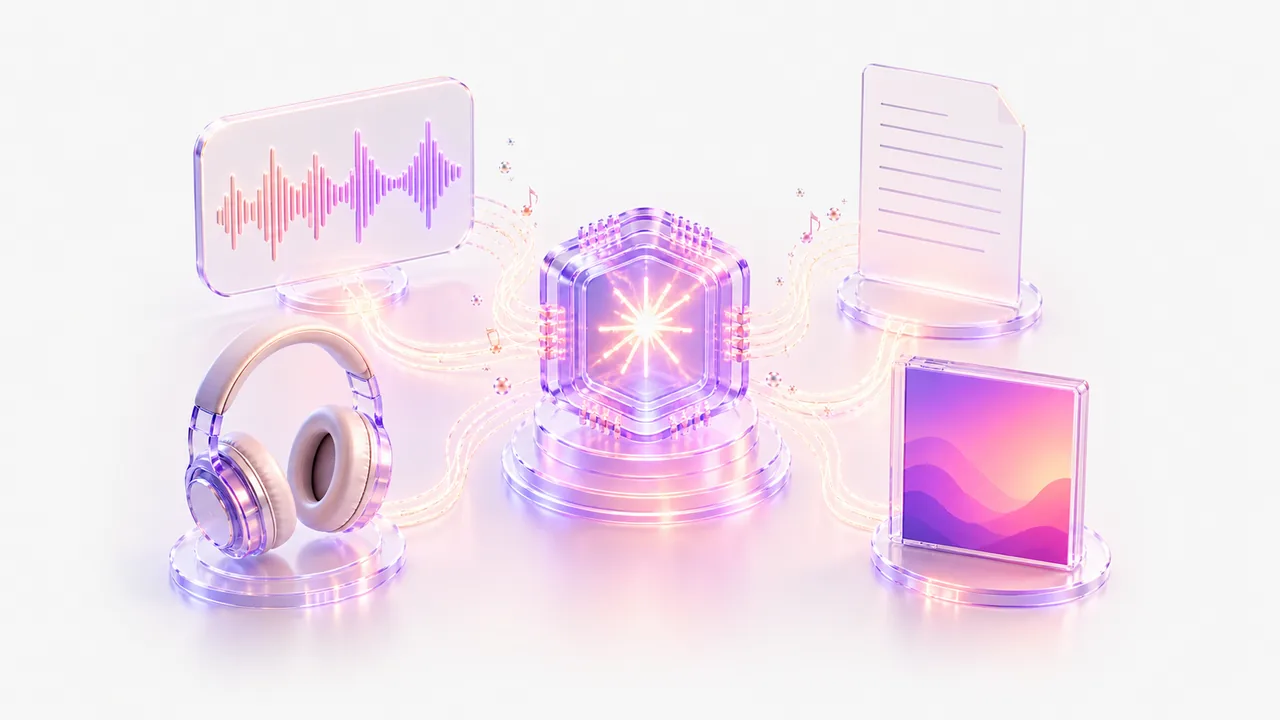
The quick answer: which tool to choose
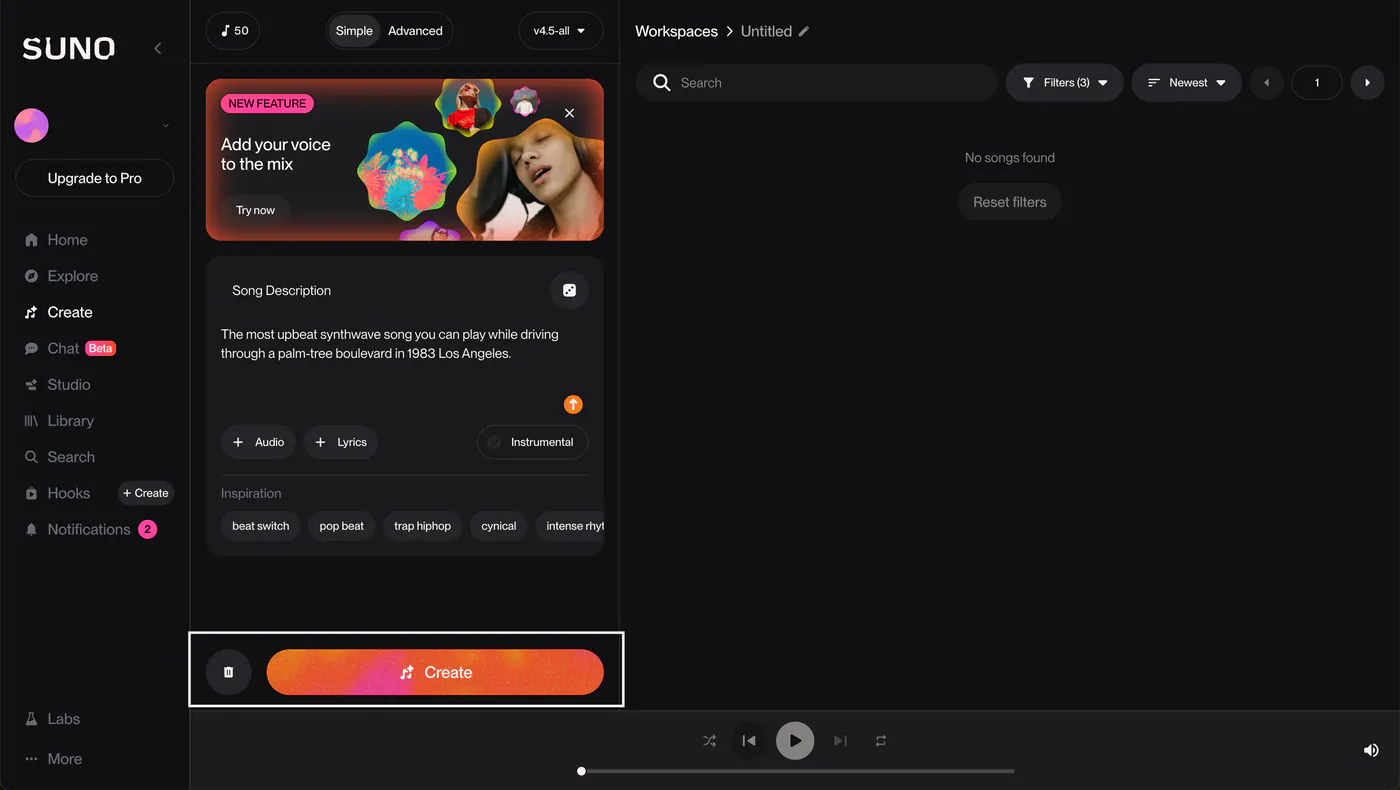
For a song draft with vocals from a text description, try the AI tool in your creator dashboard or Suno’s official service. creator uses an external AI model, with its own interface and payment. A license from an official Suno plan does not automatically apply to a creator result. AIVA is useful for instrumental composition, music for video and MIDI work. Stable Audio suits instrumental excerpts and sound-design ideas. Udio remains an experimentation tool, but currently has a critical limitation: its official help says audio, video and stem downloads are disabled.
The key criterion is not the number of free generations. It is whether you can legally download and commercially use the particular track you intend to release.
Five services compared
| Service | Best suited to | What to check before release |
|---|---|---|
| creator AI music | Vocal song drafts or instrumentals, with simple and advanced modes | Usually two versions. Download your chosen MP3 and keep a local copy. The release form requires WAV or M4A. creator’s public agreement does not separately define commercial rights to AI results; confirm them before release |
| Suno | Full songs from a description or your own lyrics | Commercial rights depend on a paid plan at creation; Basic is for noncommercial use |
| Udio | Ideas, variations, remixing and extending material inside the service | As of July 2026, audio and stem downloads are disabled, making it unsuitable as a final release step |
| AIVA | Instrumental composition, MIDI and music for content | Free is noncommercial and requires AIVA credit; Pro states full rights for music releases |
| Stable Audio | Instrumental tracks, excerpts and sound design | Commercial music releases are available under the Creator license for individual users |
Plans and features change. This table reflects official pages checked on July 20, 2026. Check the terms of the actual service where you pay for generation. For creator results, don’t assume an official Suno plan’s terms apply. Until a separate public AI license is available, ask support to confirm commercial rights in writing.
Write a prompt that gives you useful control
“Make a hit” is an unhelpful prompt. A useful one sets musical limits without asking to copy a particular performer. Try this framework:
For example: “Melancholic synth-pop, medium tempo, low male vocals, a short verse and expansive chorus, warm analog synth, dry drums; a city at night after a breakup.” If you supply lyrics, mark verses and choruses separately, shorten overloaded lines and check pronunciation.
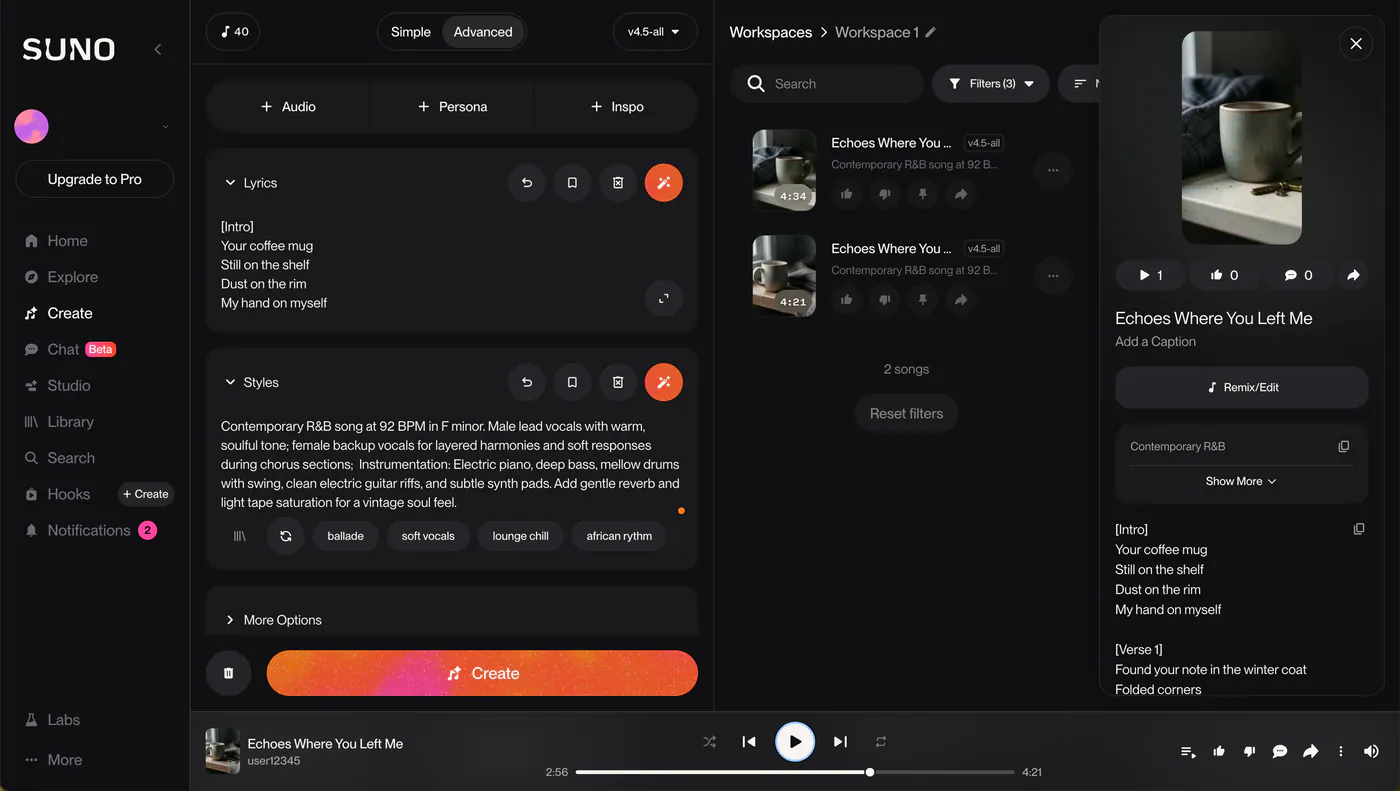
How to create a track in creator
- Open AI music in your dashboard. Simple mode needs a description; advanced mode separates style, title, lyrics and instrumental settings.
- Generate several versions. Assess the opening, transitions, word endings, noise and artifacts, not just the chorus.
- Download your chosen MP3 and keep a local copy. Also save the lyrics, prompt and applicable generation terms. Payment alone does not confirm commercial rights.
- Refine the material in a DAW and export a final WAV or M4A master. creator’s release form does not accept MP3.
- Open AI cover art, prepare a 3000×3000 JPG, download it from the gallery and check your rights.
- Attach the master and cover art manually in the release form, enter accurate metadata and confirm your rights. Each platform makes the final publication decision.
Converting MP3 to WAV does not restore data lost in compression. Check artifacts and refine the material before an official release. If you need an original lossless file or stems, choose a service and plan that explicitly provide that export.
What to check before downloading or paying
- Whether your plan allows commercial use
- Whether rights cover tracks created before payment
- Whether rights continue after subscription cancellation
- Whether results may be released on streaming platforms
- Who owns the lyrics, uploaded audio and generated recording
- Whether the result imitates a real voice or someone else’s melody
The rights holder needs commercial rights to the music, voice, cover art and all other release materials. Each platform accepts and publishes AI releases under its current rules; creator cannot guarantee publication of a specific track.
Why one successful generation isn’t enough
A generator produces a draft; it doesn’t make editorial decisions for you. Listen on headphones, your phone and at low volume. Check structure, diction and chorus consistency. Compare versions without cover art: a beautiful image can make average music seem better than it is.
For an official release, download creator’s MP3, keep a local copy and avoid recompressing it. Refine it in a DAW and export a final WAV or M4A master, then prepare metadata, songwriter names and the rights holder. Our AI release guide covers rights checks and platform rules.
Make cover art after your song
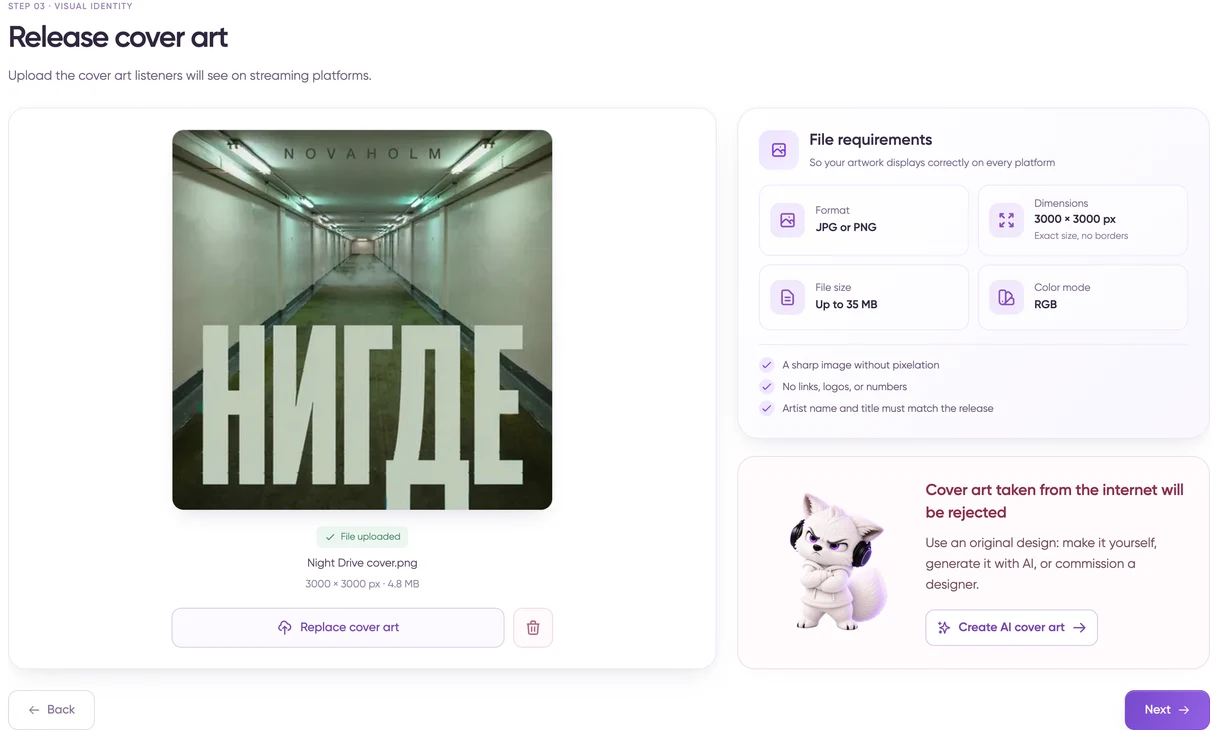
Build the visual around one specific detail: an object from the chorus, a setting, color or feeling. “A beautiful music cover” usually gives a generic result. “A lone cassette on a wet rooftop at dawn, cool pink light, close-up, no text” sets a scene and clear limits.
The usual rules still apply to AI cover art: no unauthorized logos, characters or faces, advertising calls to action or links. See our full cover art checklist.
Bringing it together
The route from idea to release depends less on the “smartest” model than on a complete process: a focused prompt, several versions, confirmed commercial rights, a refined master, checked cover art and accurate metadata. Music and cover generators share the creator dashboard, but file transfer is manual. Refine the MP3 and export WAV/M4A, download the JPG from the gallery, then attach both files in the release form. The two generators have separate balances.
Music and visuals in creator AI Studio
For sound, cover art and video materials in one project, read our creator AI Studio overview: workflows, prompt examples and result checks. Find the current status on the studio page. Generation and release delivery are separate processes.