One idea, several independent creations
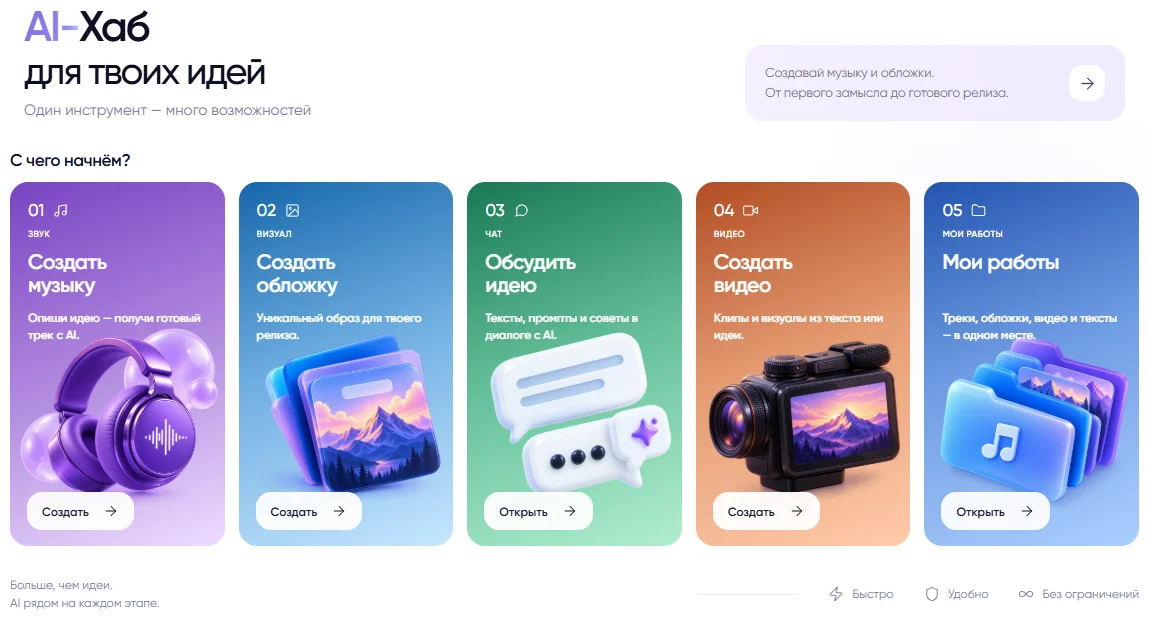
creator AI Studio brings together tools for music, cover art, text and video. Develop a creative project in stages: find its sound, explore a visual identity, then prepare a short video. The process doesn’t have to end with a streaming release. Your result might be a demo, a way to present an idea or material for your own content project.
Open AI Studio, choose a tool and prepare a prompt without signing in. You’ll need an account to generate or add funds to your AI balance; your draft text is kept while you sign in. No distribution subscription is needed. Start with a song as a gift, a song from your lyrics or cover art and a teaser.
Decide what you want to make first
Describe the task in one sentence: “I need a calm instrumental for a project demo,” or “I need a cover concept for a song about a city at night.” Then specify the audience, mood and intended use. This gives you a way to compare versions and recognize useful improvements, rather than generating endlessly without a selection criterion.
For a connected set of materials, write a short creative brief: project name, three mood words, main colors and details to avoid. Carry the concept between tools, but adapt each prompt. Musical form, image composition and camera movement need different instructions. Using identical text in every field doesn’t guarantee a consistent style.
Music: from a description to your chosen version
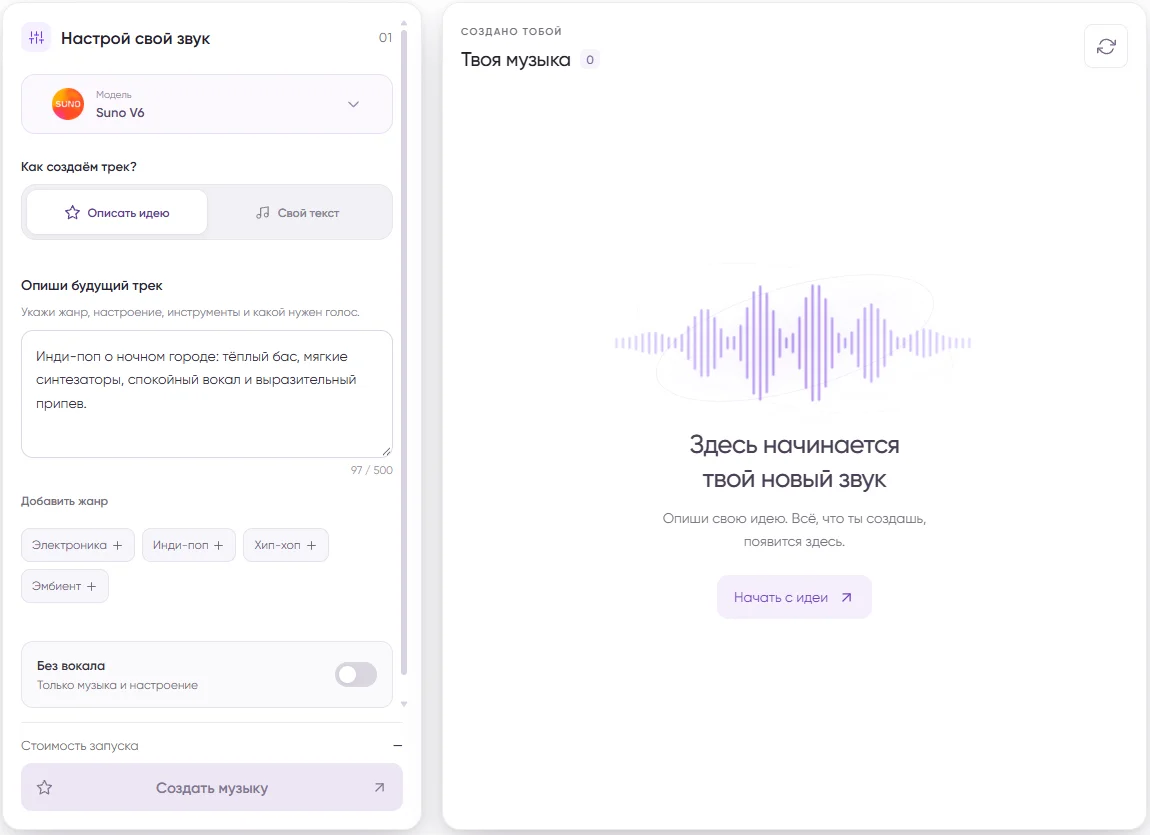
In simple mode, describe your track: genre, mood, instruments and the voice you want. The field is designed for a short idea, so a clear direction is more useful than a long list of conflicting requests. For example: “Indie pop about a city at night, warm bass, soft synths, relaxed male vocals and an expressive chorus.”
Advanced mode separates style from lyrics. If you already have words, divide them into verses and a chorus, then check pronunciation, repetitions and line lengths. Use instrumental mode for music without vocals. Don’t expect the model to follow every instruction exactly: the prompt sets a direction, while the project’s creator makes the final selection.
Listen to every version from start to finish. Compare the intro, intelligibility, transitions, ending and unwanted artifacts. Save successful versions with clear names so you don’t confuse a demo with a final. Finished results can be played and downloaded in the interface. If processing is still underway, wait until the result is available; preview playback alone doesn’t confirm that the file is ready.
Cover art: find the concept, then check the file
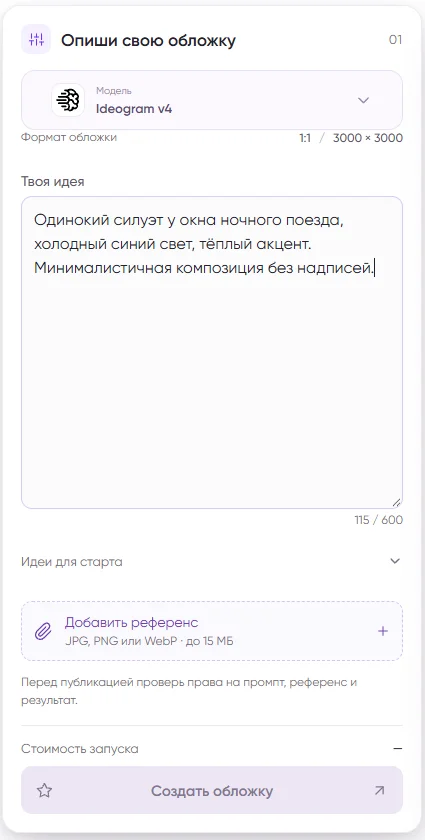
Open the cover tool and describe the main subject, surroundings, lighting, palette and composition. For a music release, start with an image that remains clear at thumbnail size. For example: “A lone silhouette at the window of a night train, cool blue light, a small warm accent, minimalist composition, no text.” This is a working brief, not a guarantee of an identical result.
Inspect the image closely: faces, hands, small objects and stray symbols. You can open and download cover art in the interface and reuse its prompt for another attempt. That doesn’t replace checking the finished file: confirm the dimensions, format and requirements of your chosen publishing channel separately. For a release, use our cover art requirements guide.
Video: one clear shot beats an overloaded script
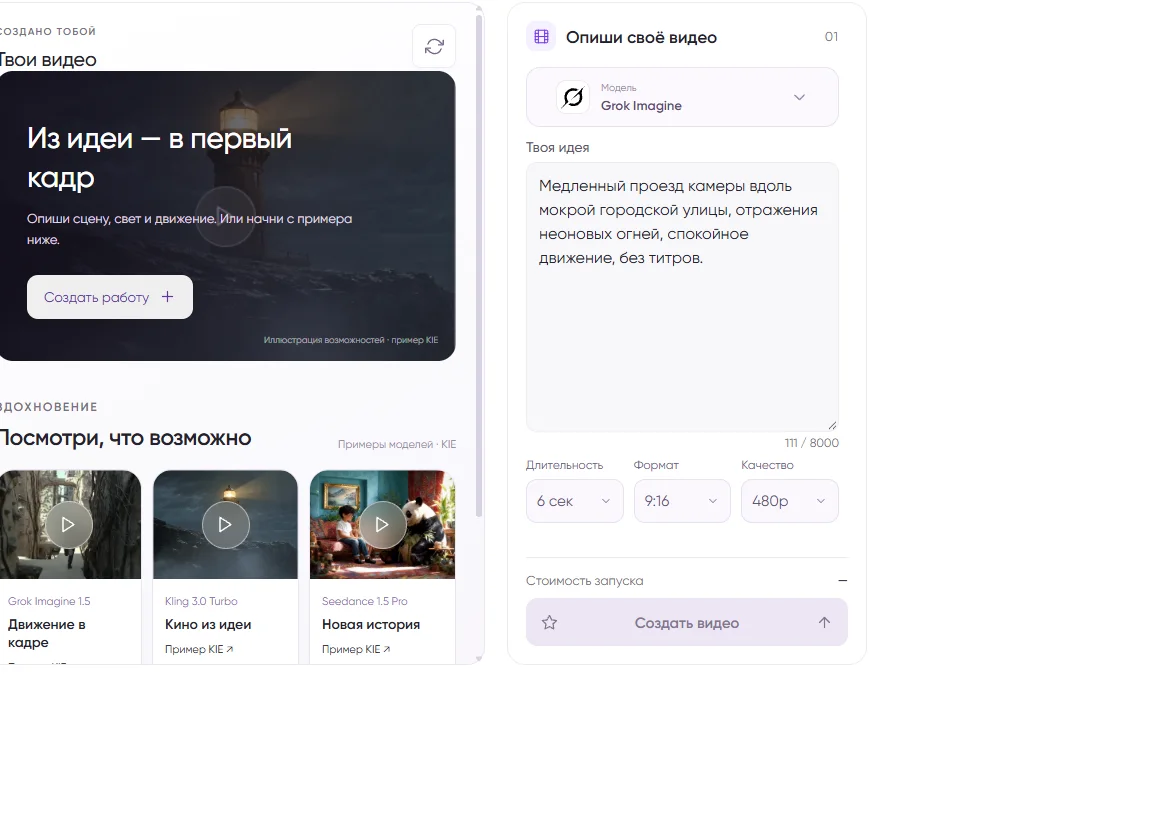
Video is a separate AI Studio tool. For an available model, the interface shows settings and the generation price. Durations, resolutions and aspect ratios depend on the model. Choose from the settings displayed rather than assuming someone else’s example applies. If a model is unavailable or its price is undefined, don’t expect a workaround to make it run.
Describe the scene, subject movement and camera work. One situation is enough for a first attempt: “A slow camera move along a wet city street, reflected neon lights, gentle movement, no titles.” Too many locations and actions in a short task make the result harder to assess. Start with a usable clip, then decide whether you need a different angle or an edit combining several results.
After processing, watch the entire clip for shifting shapes, flicker, extra objects or unexpected text. Generating a video visual doesn’t automatically sync it to your song or promise a finished full-length music video. If you need a precise musical structure, plan separate editing and an audio track check.
Your balance and library: keep track of each attempt
Before every generation, check the displayed price and your available AI balance. Cost depends on the tool and settings. A fixed price in an old guide may not apply to your current generation. Set an attempt limit for your experiment and change one meaningful condition at a time. This helps you understand what you’re paying for and which version gets closer to your goal.
The library lets you revisit your work and find the type of material you need. Download your chosen files and store them with the brief, lyrics and version notes. Don’t use the library as the only copy of important materials. If a result is missing, check the task status and interface message first. Starting again is a new attempt, not a guaranteed way to recover the previous one.
Using your work, with an optional release
Music results download as MP3, while creator’s release upload form accepts WAV or M4A. Plan file preparation separately: renaming an extension doesn’t change the format, and converting MP3 to WAV doesn’t restore lost audio detail. Check the requirements and quality of the final master before submitting it.
- Listen to the full track and watch the entire video
- Check image details and file requirements
- Confirm the tool’s terms and rights to your source materials
- Save your chosen version and a backup
Before public or commercial use, check the tool’s current terms and the origin of your source materials. Pay particular attention to other people’s voices, images of people, references and existing music excerpts. Keep records supporting your right to use the materials. Generation alone doesn’t establish the originality of every detail or replace your own checks.
If your goal is an independent creative project, you can stop here: choose suitable results and prepare them for your intended channel. If you want to release music, create a separate release and check the master, cover art, metadata and rights. Our music platform guide explains delivery. Creating files in AI Studio does not send them to platforms automatically.